

 Published sources
 Product details checked
A rotating camera can reduce blind spots in an open-plan home, but the word “360” does not mean that one lens sees every corner at the same time. Furniture still blocks the floor, a half wall still hides a hallway, and a weak network connection can make the best-looking shelf useless.
Quick answer: one Petcube Cam 360 is enough only when it passes three views from one safe position: your dog’s main rest zone, the doorway or window that triggers activity, and the water bowl or transition route. Each view must work in daylight and darkness, the live stream must remain stable on 2.4 GHz Wi-Fi, and the power cable must stay out of reach. If a wall, kitchen island, tall sofa, or separate room hides a place your dog regularly uses, a second camera is more reliable than endlessly panning the first.
This is a repeatable at-home placement protocol, not a claim that we conducted a laboratory or hands-on product test. The device-specific figures below come from the official Petcube Cam 360 user guide and current manufacturer product page; any performance language is identified as a manufacturer specification.
If you need a brand-neutral starting point first, use our dog camera placement guide for height, glare, audio, and general room mapping. This article narrows that process to the Cam 360 and the one-versus-two-camera decision.
What “360” Means on the Petcube Cam 360
Petcube markets the device as a 360-degree pan-and-tilt camera. Its detailed specifications are more useful for planning: the manufacturer lists a 105-degree lens, 350-degree horizontal rotation, and 55-degree vertical rotation, with 1080p video and infrared night vision. In other words, the motor can turn the lens around most of the room, but the live image is still a 105-degree view in one direction at a time.
That distinction changes the placement decision:
- Rotation is not simultaneous coverage. The current guide describes moving the camera with horizontal and vertical arrows in the live stream. It does not document a multi-lens panoramic recording that watches all directions at once.
- A physical blocker remains a blocker. A sofa back, island, plant, cabinet, or half wall can hide a dog at every motor position.
- Vertical range matters. A camera placed too high or too far back on a shelf may spend part of its tilt range looking at the shelf edge instead of the floor.
- The default direction matters. Put the highest-priority safety area in the normal resting view, then use rotation to inspect secondary zones.
The official guide recommends placing the camera at least 3 feet above the floor on a table or shelf and closer to the front edge for a better viewing angle. Treat that as a Petcube-specific starting point, not permission to leave the unit where a dog can reach it. A large dog, climber, or determined chewer may require a secure wall mount and protected cable route.
Prepare a Floor Plan Before Moving the Camera
Draw the room as a simple rectangle and add only the objects that affect what the camera can see. You do not need architectural software; graph paper, a notes app, or painter’s tape on a printed floor plan is enough.
Mark these six items:
- Rest zone: bed, crate, sofa corner, or floor area where the dog usually settles.
- Trigger zone: front door, hallway, street-facing window, or appliance that precedes barking or pacing.
- Water and safe-use zone: bowl, feeding station, enrichment mat, or gated area you need to verify.
- Dog routes: the paths actually used between those zones, including routes behind furniture.
- Full-height blockers: walls, cabinets, island panels, bookcases, and closed doors.
- Low blockers: sofa backs, armchairs, consoles, bins, and plants that can hide a small dog near the floor.
Then mark two candidate camera positions. A central position is not automatically best. A shelf slightly off-center can see past the sofa and into a doorway better than a camera placed in the geometric middle of the room.
The Three-Viewpoint Open-Plan Test
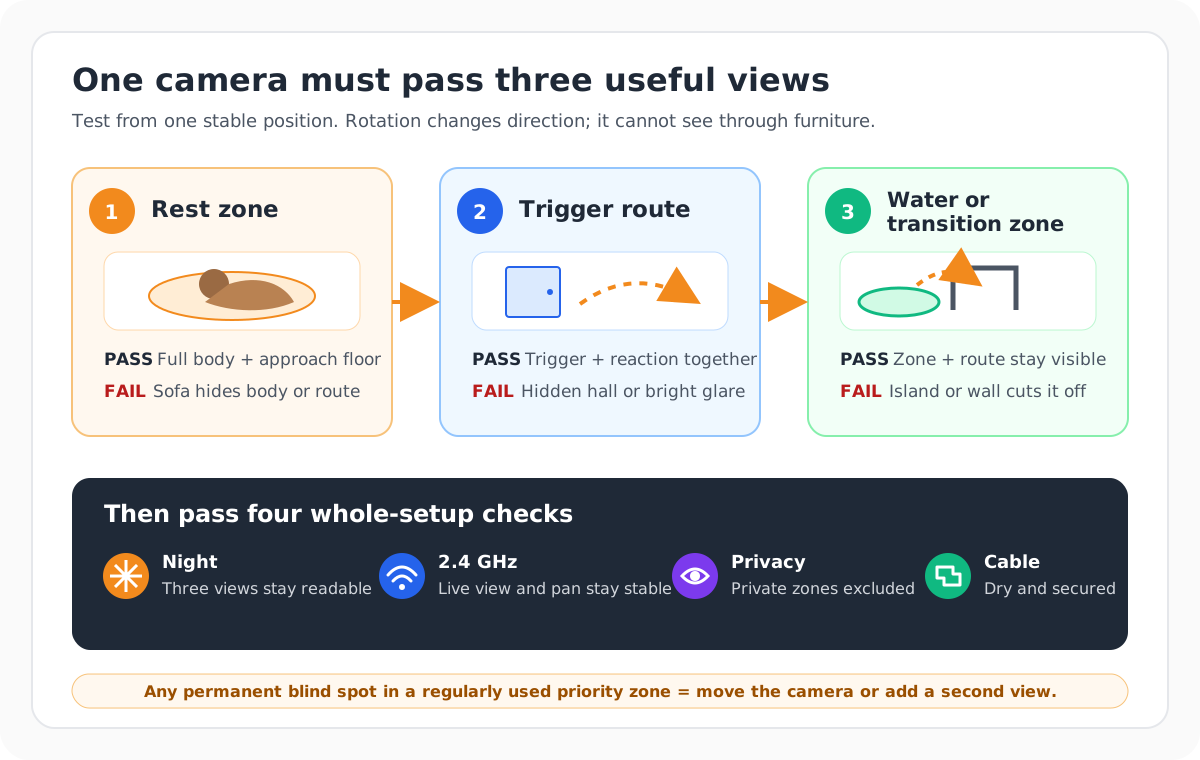
Run the test while you are home and your dog is calm. Place the camera on a stable surface at the intended height, route the cable temporarily but safely, and open the live stream.
View 1: the rest zone
Start with the camera in its normal direction. You should see your dog’s entire body on the bed or floor plus enough surrounding space to interpret posture and movement.
Pass when: the dog remains visible lying down, standing, and turning around; the approach path is in frame; and the shelf edge does not obscure the floor.
Fail when: only the dog’s head is visible, the sofa hides the body, or the camera must point so steeply down that the doorway and nearby floor disappear.
View 2: the trigger and entry route
Use the on-screen arrows to turn toward the doorway, window, or hall that matters most. Have another person walk through the route while you watch.
Pass when: the trigger and the dog’s reaction area appear together. Seeing a door without the dog, or the dog without the approach to the door, gives too little context.
Fail when: a half wall, island, or tall sofa creates a hidden approach; bright window glare silhouettes the dog; or the dog leaves the image before reaching the trigger.
View 3: water, gate, or transition zone
Turn to the bowl, baby gate, crate entrance, or passage into the second half of the open plan. Watch a complete walk from the rest zone to that point.
Pass when: you can confirm access, see the floor around the zone, and follow most of the route.
Fail when: the bowl sits behind an island panel, a gate is visible but its approach is not, or the dog routinely exits into an unmonitored room.
Make the three views repeatable
The current Petcube guide documents manual arrow controls but does not promise saved camera-position presets. Do not make a purchase decision on the assumption that three one-tap presets exist. Instead:
- take a screenshot of each passing view;
- note the camera’s starting direction and approximate number of arrow taps;
- leave the highest-priority view as the normal position; and
- if your current app version offers a preset or position-saving feature, verify it directly before relying on it.
If you cannot reproduce a view quickly, it is not a dependable check-in view during a real event.
Advertisement / Affiliate disclosure: This article contains paid affiliate links. We may earn a commission at no extra cost to you.
Product used for this placement protocol
-
Petcube Cam 360
Petcube
A 1080p indoor pet camera with 360-degree pan/tilt movement, two-way audio, night vision, and a camera-off privacy mode.
- 360-degree pan/tilt movement with a 105-degree lens
- 1080p live video, two-way audio, and night vision
- Camera-off privacy mode and 2.4 GHz Wi-Fi
- Coverage hardware
- 360-degree pan/tilt and privacy mode
- Recording context
- Live view; review current Petcube Care plan for cloud history
- Best for
- Whole-room pet monitoring with pan/tilt coverage and a visible privacy mode
Confirm the current app, connectivity, subscription, and mounting details on the linked manufacturer page before purchasing.
Find Blind Spots Furniture Creates
After the three main views pass, walk the dog’s real routes at normal speed. A slow staged walk can miss the exact places where the dog slips behind an object.
Sofa and chair backs
A camera mounted near sitting height may look across the top of a sofa while losing the entire strip of floor behind it. Test with the dog close to the furniture, not only in the middle of the room. Moving the camera sideways often helps more than raising it.
Kitchen islands and half walls
An island can divide one visually open room into two camera zones. If your dog rests on the kitchen side and the living-room side, a single lens may never see both floors. Place the camera near an end of the island and test diagonally; if the panel still blocks a regular resting spot, plan for a second camera.
Door recesses and short hallways
Open-plan rooms often have recessed doors or a few feet of hallway beyond the main space. A camera may show the threshold but not the dog once it crosses. If the hidden hall leads to stairs, an exterior door, or another priority area, treat that as a meaningful blind spot rather than unused square footage.
Plants and temporary clutter
Large leaves, a laundry basket, delivery boxes, and moved dining chairs can turn a passing setup into a failing one. Repeat the test with the room in its normal weekday state, not only after tidying for installation.
Repeat the Test in Darkness
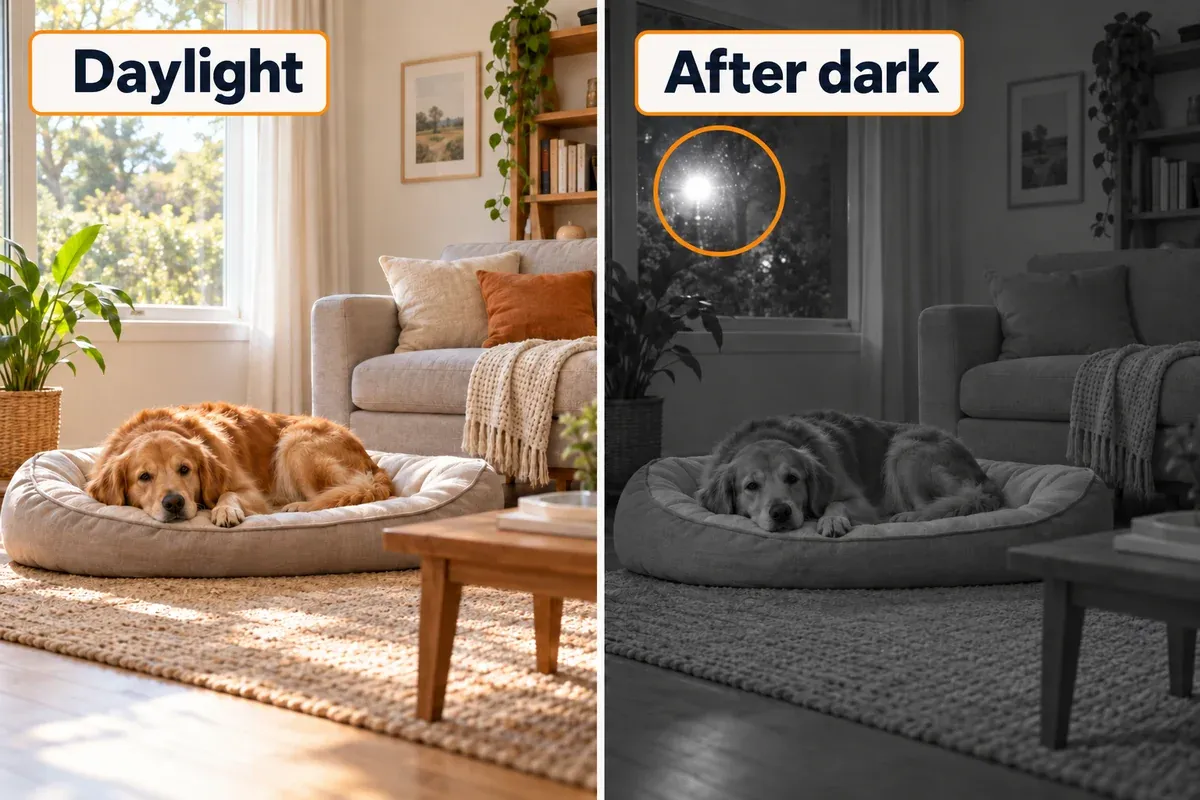
Petcube’s manufacturer documentation says night vision activates automatically in low light and can also be set to on or off. The product page advertises a range of up to 30 feet; that is a manufacturer specification, not a guarantee through every room layout.
Run a real night test after sunset:
- Turn off the lights you normally leave off.
- Check all three views rather than only the default view.
- Have a person walk the dog’s routes and pause behind furniture.
- Look for a washed-out foreground, reflective surfaces, and a dark dog blending into a dark rug.
- Confirm that the water bowl, gate, and doorway remain distinguishable.
Avoid aiming through glass. Infrared light can reflect from windows, glass cabinet doors, glossy frames, and mirrors, producing a bright patch that hides the room beyond. A daytime view through a patio door is not proof that the same view works at night.
If the camera passes during the day but fails at night, first change the angle or remove the reflective object from the frame. A low, dim ambient light may improve usable context, but it should be pet-safe, cool-running, and placed so the dog cannot reach its cable.
Test the Actual 2.4 GHz Connection
Petcube specifies a password-protected 2.4 GHz 802.11b/g/n network and at least 2 Mbps upload at the camera, with 4 Mbps recommended in the current user guide. Test at the final camera position; a speed test beside the router does not represent a shelf across the home.
The FCC’s home-network guidance explains the trade-off: 2.4 GHz generally reaches farther than 5 GHz, but it is used by many household devices and neighboring networks, so congestion can affect performance. Broader reach is helpful in an open plan, but it is not immunity from interference.
Use this practical stability test at the time of day when the home network is busiest:
- open live view for two minutes without touching the controls;
- pan through all three viewpoints and return to the starting view;
- listen, then use one short two-way-audio phrase at low volume;
- save a manual screenshot or short clip to confirm the app responds;
- leave the app, wait several minutes, and reconnect over cellular data; and
- repeat while the television, work calls, or other normal network traffic is active.
Do not diagnose every freeze as weak Wi-Fi. First distinguish among a poor signal at the shelf, broadband upload congestion, an app or service problem, and a camera that has gone offline. Petcube’s guide recommends reducing obstacles between camera and router and notes that walls, floors, radio interference, microwaves, refrigerators, cordless phones, and baby monitors can affect the connection.
If the shelf is the only weak spot, moving the camera a few feet may be enough. If an entire side of the home is weak, reposition the router or consider a properly placed mesh node or access point. A network extender cannot make a furniture blind spot disappear.
Protect the Camera, Cable, and Power Route
The Cam 360 needs continuous external power; it does not become a cordless camera after setup. The official guide warns against liquid, moisture, heat, direct sunlight, and a power cord that is walked on or pinched.
Before leaving the dog alone, confirm that:
- the base cannot be nudged off the shelf by a nose, tail, or jumping dog;
- the cable runs behind furniture or in a pet-resistant raceway without a chewable loop;
- no extension-cord connection sits beside the water bowl;
- the cord is not trapped under a sharp furniture leg or door;
- the camera has room to rotate without winding or rubbing the cable; and
- any wall fastener suits the actual wall material and follows the mounting instructions.
Do not solve a poor angle by stacking the camera on books or a narrow box. A proper mount or a different stable shelf is the simpler safety fix.
Privacy and Account Security Belong in the Placement Test
An indoor pet camera records a home, not only a dog. Keep bedrooms, computer screens, documents, and neighboring windows out of view where practical. Ask household members and regular visitors which areas should never be recorded.
Petcube lists a closed-lens Privacy Mode that turns the lens down and blocks its view. Verify the physical position yourself, use it when monitoring is unnecessary, and remember that an app control is only useful if everyone who needs privacy understands it.
For the account and network, follow the camera-specific advice from the US Federal Trade Commission and the IoT guidance from CISA:
- use a unique, strong account password rather than a reused password;
- enable two-factor authentication if the current account offers it;
- keep the camera firmware, phone operating system, and Petcube app updated;
- use WPA2 or WPA3 on the home network and consider a separate IoT or guest network;
- review app permissions and camera-sharing access; and
- remove former guests, sitters, or household members when access is no longer needed.
Petcube says its data transmission uses TLS with 128-bit encryption and firmware is distributed with signed updates. Those are manufacturer security claims, not a substitute for secure account settings or an independent security audit.
The user guide says family sharing can provide broad control while friend sharing can be limited by times, days, and permissions. Give a sitter only the access needed for the relevant dates, then revoke it.
Hardware Cost vs. Optional Ongoing Cost
Separate the camera purchase from the cloud-service decision:
| Cost layer | What it covers | Decision to make |
|---|---|---|
| Camera hardware | Camera, power hardware, and included mounting items described on the current product page | One camera or two based on physical coverage, not on a bundle offer |
| Home network and power | Existing broadband, Wi-Fi coverage, outlet, and any mount, raceway, mesh node, or access point you genuinely need | Fix the diagnosed connection or cable problem only |
| Optional Petcube Care subscription | Manufacturer-described cloud video history and eligible smart alerts, with features varying by plan | Decide whether live checking is enough or recorded event history is essential |
Petcube’s current product page says the Cam 360 can be used without a monthly subscription for live streaming, while stored video and smart alerts depend on Petcube Care. The current guide describes Care as an optional recurring plan and sends readers to the Petcube Care page for plan details.
Do not copy an old subscription price into your budget. Check the current billing interval, trial conversion, video-retention period, download limits, cancellation terms, and multi-camera coverage before subscribing. The guide currently distinguishes a one-camera plan from an account-level plan for multiple cameras, but plan names and coverage can change.
One Camera or Two? Use This Decision Rule
Choose one camera when all of the following are true:
- all three priority views pass from one secure position;
- the dog’s main zone remains in the default view;
- other views are occasional check-ins rather than areas requiring simultaneous observation;
- the day and night images both provide useful context;
- the 2.4 GHz stream remains stable at the final position; and
- privacy and cable routing are acceptable.
Choose two cameras when any of these is true:
- the dog regularly moves behind a permanent wall, island, tall sofa, or closed door;
- two separated areas need to be visible at the same time;
- stairs, an exterior door, or another risk area disappears whenever the lens faces the bed;
- moving the first camera to fix one blind spot creates another priority blind spot; or
- one stable network location cannot physically see the second zone.
Do not buy a second camera merely because a multi-pack exists. First test the second position with the camera you have, if practical. Conversely, do not force one camera to cover two rooms just to avoid another device when the actual monitoring question requires simultaneous views.
If the placement test shows that this camera’s coverage or service model is not the right fit, compare different feature sets in our best dog cameras guide rather than adding identical hardware by default.
View Petcube Cam 360 →Final Placement Scorecard
Give the candidate position one point for each “yes”:
- The default view shows the entire rest zone and surrounding floor.
- The trigger and the dog’s reaction area can appear together.
- The water, gate, or transition zone has a reproducible view.
- No regular dog route disappears behind a permanent blocker.
- All three views remain useful at night.
- Live view, pan/tilt, audio, and reconnection work on 2.4 GHz.
- The base and cable are secure and inaccessible to the dog.
- Private areas and screens are excluded or deliberately managed.
- Account, network, updates, and sharing are configured securely.
- Any optional subscription cost has been evaluated separately.
Nine or ten points: one camera is a reasonable starting setup. Seven or eight: fix the failed item and retest. Six or fewer: change the position or plan a second camera; the word “360” is not solving the room geometry.
Frequently Asked Questions
Can one Petcube Cam 360 cover an entire open-plan floor?
Sometimes, but not automatically. It can pan around a largely unobstructed room, yet walls, islands, tall furniture, and separate rooms remain blind spots. Use the three-view test and require the default view to show the highest-priority zone.
Does Petcube Cam 360 save preset camera positions?
The current official guide documents manual horizontal and vertical arrow controls. It does not promise saved PTZ presets. Check the current app version directly; do not assume presets are included based on another camera brand.
How high should I place Petcube Cam 360?
Petcube’s guide recommends at least 3 feet above the floor on a table or shelf and close to the edge for a better angle. Increase security or use the official mounting approach when a dog can reach the unit or cable.
Does it work on 5 GHz Wi-Fi?
The current manufacturer specifications list 2.4 GHz Wi-Fi. Connect and test on that band at the final shelf or mount, even if your phone normally uses 5 GHz.
Is Petcube Care required?
Petcube says live streaming works without a monthly subscription. Cloud video history and smart-alert features depend on an optional Care plan. Verify current features and recurring terms because subscription details can change.
Should the camera face the dog’s bed or the front door?
Leave it facing the area you most need to observe without delay—usually the dog’s main rest zone or the main behavior trigger. If both areas require simultaneous coverage in opposite directions, use two cameras rather than relying on manual panning.
Sources and Further Reading
- Petcube Cam 360 user guide — official specifications, setup, placement height, manual rotation, night vision, Wi-Fi, cable safety, sharing, and optional Care functions.
- Petcube Cam 360 product page — current manufacturer feature, hardware, connectivity, privacy-mode, and no-subscription statements.
- Petcube Care — current plan features and recurring terms to review separately from the camera purchase.
- Federal Communications Commission: Home Network Tips — 2.4 GHz reach, congestion, router placement, extenders, and mesh context.
- Federal Trade Commission: How to Secure Your Home Security Cameras — network encryption, updates, unique passwords, two-factor authentication, remote access, and sharing.
- CISA: Internet of Things security tips — app permissions, device updates, unique passwords, and separate-network guidance.
Product, app, and subscription details can change. Confirm the current Petcube documentation and terms before purchasing or relying on a feature.